How to compare two versions of a PDF and see what changed
A contract comes back "with a few small edits". Here is how to find every changed word, added page and moved signature, without reading both versions side by side.
The other side sends the contract back: "We've made a few small changes, nothing major." The document is 18 pages long. Reading both versions side by side, line by line, takes an hour and you'll still worry you missed something.
Comparing PDFs automatically takes a minute and catches what tired eyes don't. This guide shows how to do it, how to read the results, and what a comparison can and can't tell you.
Two kinds of differences
A good comparison looks at a document in two ways:
- Text differences: words that were removed, added or changed. This catches the edits that matter most in contracts and policies: a changed amount, a new clause, "shall" becoming "may".
- Visual differences: changes in how a page looks. This catches things a text comparison misses: a moved signature, a replaced logo, a changed table layout, a different image, or a stamp that appeared.
Compare PDF does both.
Step by step
- Open Compare PDF.
- Add the original version first.
- Add the changed version second.
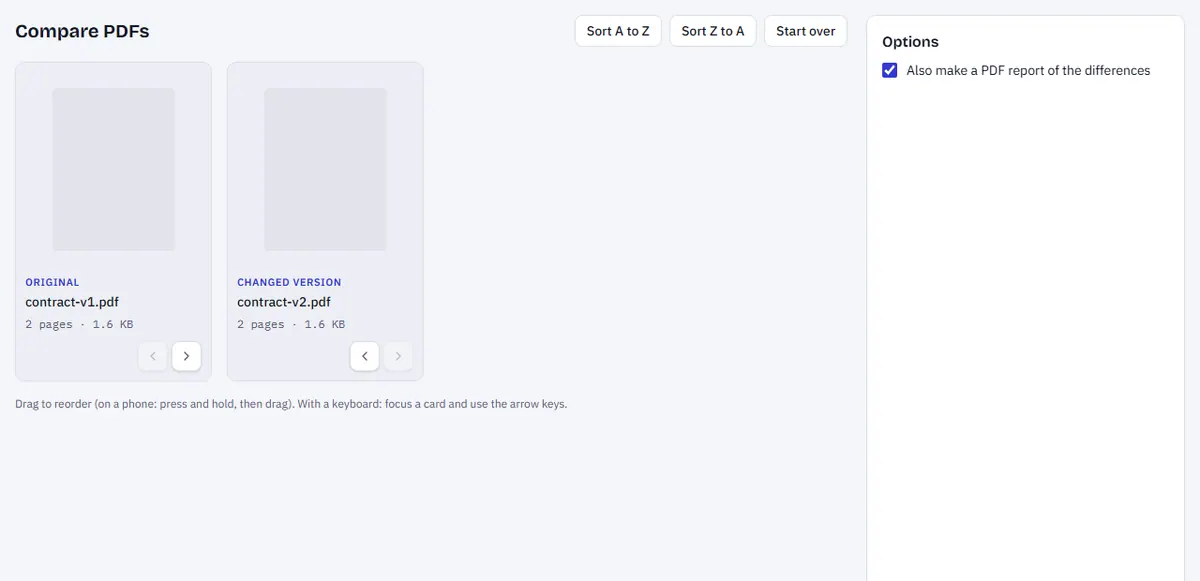
Compare PDF with the original and changed files added.
- Click Compare PDF.
- Read the summary at the top, for example 4 pages changed, 1 page added.
- Open each changed page to see the differences.
The comparison runs in your browser. Neither file is uploaded, which matters for confidential contracts and internal reports.
Reading the results
For each changed page you can switch between views:
- Text: removed words in red, added words in green, in reading order. This is where you check the wording.
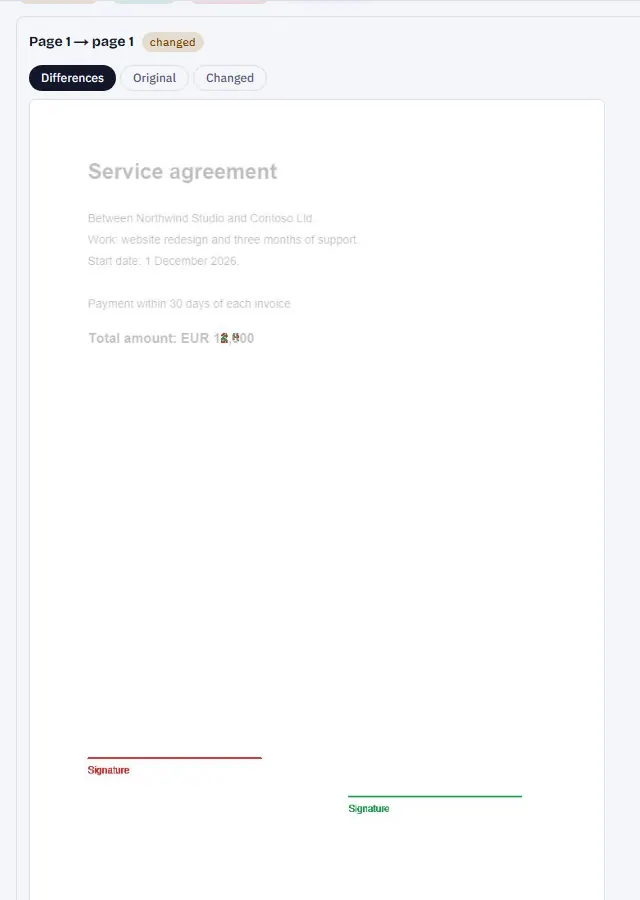
- Visual: the original, the changed version, and an overlay where everything that didn't change is faded, so the changes stand out.

The Text view showing a changed amount in red and green.
The Visual overlay with a moved signature highlighted.
Pages that were added or removed are matched automatically, so a single inserted page doesn't make every page after it look "changed".
Why a whole paragraph can show as changed
When one line is added near the top of a page, everything below it moves down. Visually, the page looks very different even though only one line changed. The Text view is the place to see the real edit: it compares words, not positions.
Similarly, a document re-exported with a different font or margin can show many visual differences with no change in wording. Check the text view before concluding that everything was rewritten.
Sharing the differences
Need to send the list of changes to a colleague or a lawyer? Tick Also create a PDF report before comparing. You get a report with every changed page and its text differences, which you can attach to an email or keep with the contract file.
Comparing scanned documents
Scanned PDFs contain images of pages, not text. They're compared visually, pixel by pixel, page by page. That works well for spotting added stamps, signatures and changed areas, but you won't get a word-by-word list.
For a word-level comparison of scans, run both files through OCR PDF first. Keep in mind that OCR can make small recognition mistakes, which may show up as tiny "differences".
Good habits for reviewing changes
- Compare against the version you actually sent, not an earlier draft. Keep sent versions with clear names like Lease-v3-sent-2026-05-02.pdf.
- Ask for a changed version as PDF, not just a marked-up Word file. Track changes can be turned off or accepted before sending, while a PDF comparison shows everything.
- Check numbers twice: amounts, dates, notice periods, percentages.
- Look at the last pages: signature blocks and annexes are easy to change and easy to overlook.
- Read added pages fully: a new annex can change the meaning of the whole agreement.
What a comparison can't tell you
A comparison shows what changed. It can't tell you whether a change is acceptable, or whether two differently worded clauses mean the same thing legally. For important agreements, use the comparison to focus a professional's review, not to replace it.
It also can't detect changes that leave no trace on the page, such as different hidden metadata. If that matters, check document properties with Edit PDF metadata or inspect the file with PDF safety check.
Other uses
- Policy and terms updates: see exactly what changed in a new version of terms and conditions.
- Report revisions: check that requested corrections were made, and nothing else.
- Print proofs: compare the final print PDF with the approved proof to catch last-minute changes.
- Forms: check that a returned form wasn't altered beyond the filled-in fields.
Frequently asked questions
Does it work with scanned PDFs? Yes, visually. Scanned pages are compared pixel by pixel, page by page.
Why does a whole paragraph show as changed? When text moves down a line, the page looks very different. The text view shows the real word changes.
Are my files uploaded? No. Both documents are compared on your device.
How many pages can it handle? There's no fixed limit, but very long documents take longer, especially on a phone.
Try it now: Compare PDFs