How to extract images from a PDF in their original quality
Screenshots of a PDF are blurry and the wrong size. Here is how to save every photo, logo and chart from a PDF as a separate file, at the resolution it was stored in.
You need the photos from a brochure, the logo from a letterhead, or the charts from a report, and all you have is the PDF. Taking screenshots works, sort of: you get the image at screen resolution, with bits of the page around it, and it looks soft when you use it anywhere else.
There's a better way. Images inside a PDF are stored as separate files, and you can take them out exactly as they are. This guide shows how, and what to do when the image you want isn't really an image.
Extract vs convert: what's the difference?
There are two very different ways to get pictures out of a PDF:
- Extracting images saves the image files that are embedded in the PDF: each photo, logo or chart separately, at its original resolution. Nothing is redrawn.
- Converting pages to images takes a picture of each whole page, including text, margins and layout, at a resolution you choose.
| You want… | Use |
|---|---|
| The photos from a brochure | Extract images |
| A logo to reuse | Extract images |
| A whole page as a picture for social media | PDF to JPG |
| Pages from a scanned PDF | PDF to JPG (each page is an image) |
| A chart drawn with lines and shapes | PDF to JPG, then crop |
Step by step: extract images
- Open Extract images.
- Add your PDF.
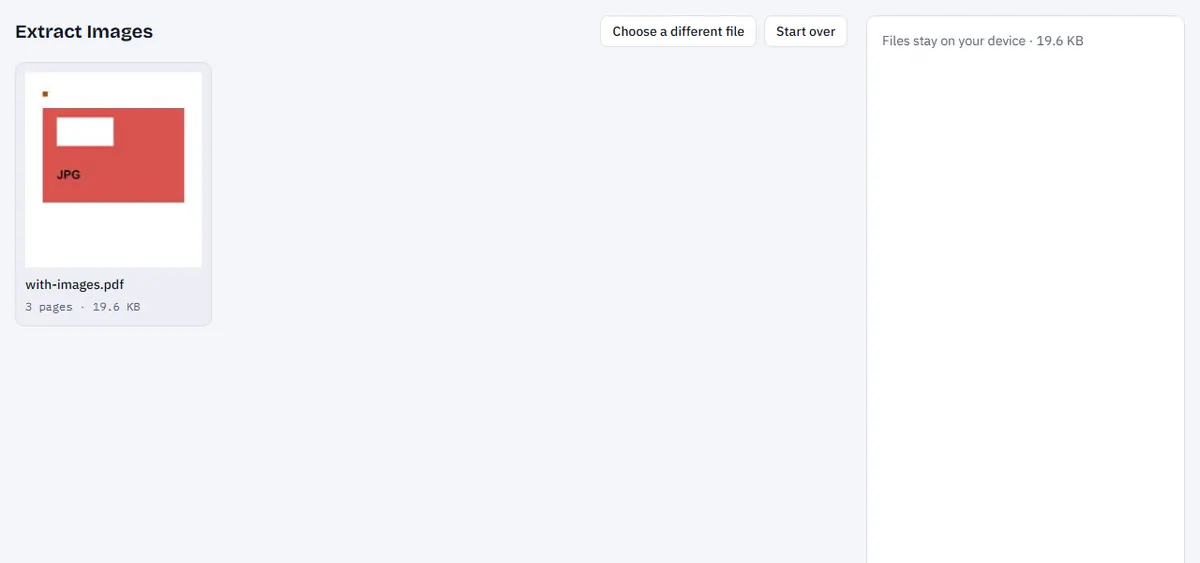
Extract images with a brochure PDF added.
- Click Extract images. Every embedded image is found and saved.
- Download the images one by one, or all together in a ZIP.
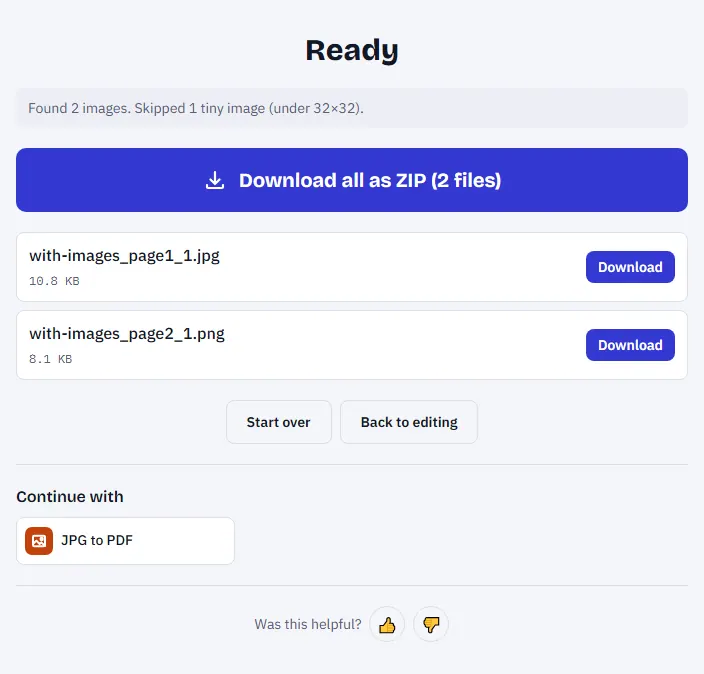
The result list with image thumbnails and a "Download all" button.
Images are saved in the format they were stored in, usually JPG or PNG, and named after the page they come from. An image that appears on several pages, like a logo in every header, is saved only once. Nothing is recompressed, so there's no quality loss, and the PDF itself isn't changed.
Extraction runs in your browser; the PDF is never uploaded.
Why some images don't show up
Vector graphics aren't images. Charts, diagrams, icons and many logos in PDFs are drawn with lines, curves and shapes (vector graphics), not stored as pictures. They look like images on the page, but there's no image file to extract. Use PDF to JPG at Print · 300 dpi to capture the page, then crop the part you want.
Scanned PDFs are one image per page. In a scan, the whole page is a single image. Extracting gives you full-page images, the same as converting pages. If that's what you get, use PDF to JPG for more control over resolution.
Rare image formats. A few image types used in PDFs can't be saved as normal image files this way. The result tells you how many were skipped.
Images split into tiles. Some programs store a large picture as several strips or tiles. You'll get the pieces, which you'd need to join in an image editor, or capture the page with PDF to JPG instead.
Expect more files than you see
Extraction includes everything embedded: small icons, bullets, background textures, masks used for transparency. A 10-page brochure can easily produce dozens of files. Sort by file size to find the main photos quickly; they are usually the largest.
Image quality: what you get is what was stored
Extracted images have exactly the resolution they were stored with. If the brochure's designer used a 400-pixel-wide photo, that's what you get, even if it looked fine printed small. Extraction can't add detail that isn't there.
For reference, a photo printed 10 cm wide at good quality needs about 1,200 pixels across. Web images are often fine at 800–1,600 pixels.
Using extracted images responsibly
Extracting an image doesn't change who owns it. Photos in brochures and reports are often licensed for that document only. Before reusing an image:
- use your own documents and images freely,
- ask the owner or check the licence for anything else,
- give credit where the licence requires it.
Related tasks
- Turn images back into a PDF: JPG to PDF.
- Make a PDF smaller by lowering image quality: Compress PDF.
- Get the text too: PDF to text extracts all the text in your browser.
- Convert pages for presentations: PDF to PowerPoint turns each page into a slide.
Frequently asked questions
Are the images in full quality? Yes. They're saved exactly as stored in the PDF, without recompression.
Why are some images missing? Drawings made of lines and shapes (vector graphics) aren't images, and some rare formats can't be extracted. Use PDF to JPG to capture whole pages.
Is my PDF uploaded? No. Extraction happens on your device.
What if no images are found? The PDF may be a scan (use PDF to JPG) or contain only text and drawings.
Try it now: Extract Images